Living with a Cloud PC

About a year ago I began the journey into Windows 365 Cloud PCs. As an IT consultant I need access to a set of tools. One of the tools I’ve used extensively is Windows 365. With Windows 365 I have all of the corporate applications and data that I rely on conveniently available on a single Cloud PC. From any device with a web browser – Windows, Apple or Android – I can connect to my Cloud PC and be productive in seconds. I spend most of my workday in my cloud PC, switching between the Windows 365 Cloud PC and my host desktop as required.

Recently Microsoft made Windows 365 Switch available for Windows 11, making it incredibly simple to switch between the local Windows 11 desktop and my Windows 365 desktop.

Set Up Windows 365 Switch

First you will need to add your Windows 365 Cloud PC to the Task View on your Windows 11 desktop. Task View is not new to Windows 11, but personally I have never used the Task View before, so I had to dig a bit to figure out what they were talking about. All you need in order to set up Windows 365 Switch is Windows 11 Enterprise (or Professional) running version 22621.2361 or later and a Windows 365 Cloud PC license assigned to you. Your Cloud PC must also be running Windows 11.

In the Windows App (which you can download from https://windows365.microsoft.com/) you will see all of the Windows 365 Cloud PCs associated with your account. Select the ellipses beside the “Connect” button on the one you would like to switch between and select “Add to Task view.”
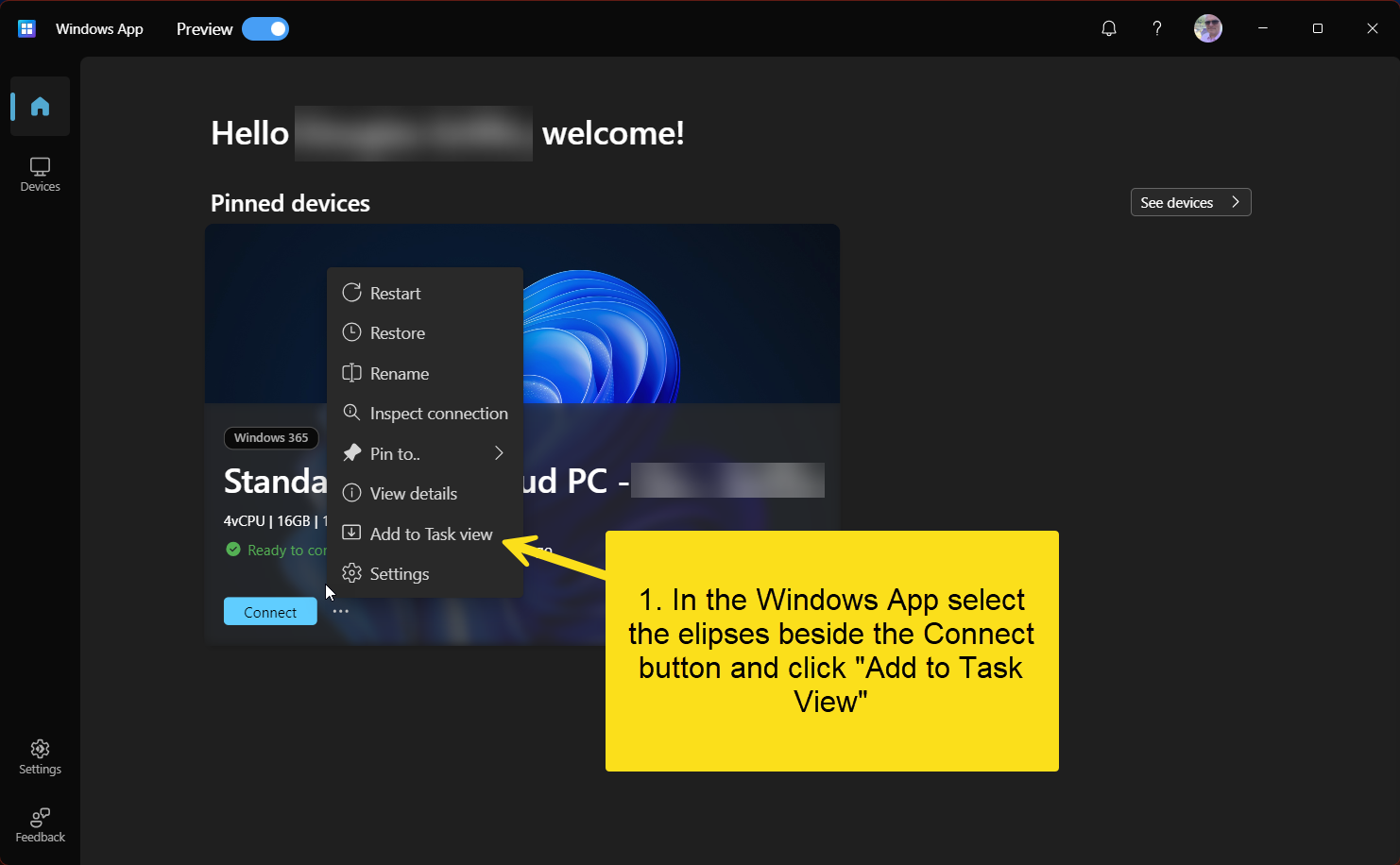
That’s it. Really. There is nothing more to do to expose the end-user experience.

Using Windows 365 Switch

Now on your Windows 11 desktop you will need to locate the Task View icon from your taskbar. Hover over or click on the Task View icon and you will see the desktop you are currently logged into (Desktop 1 in my case). You will also see the option to connect to your Cloud PC.

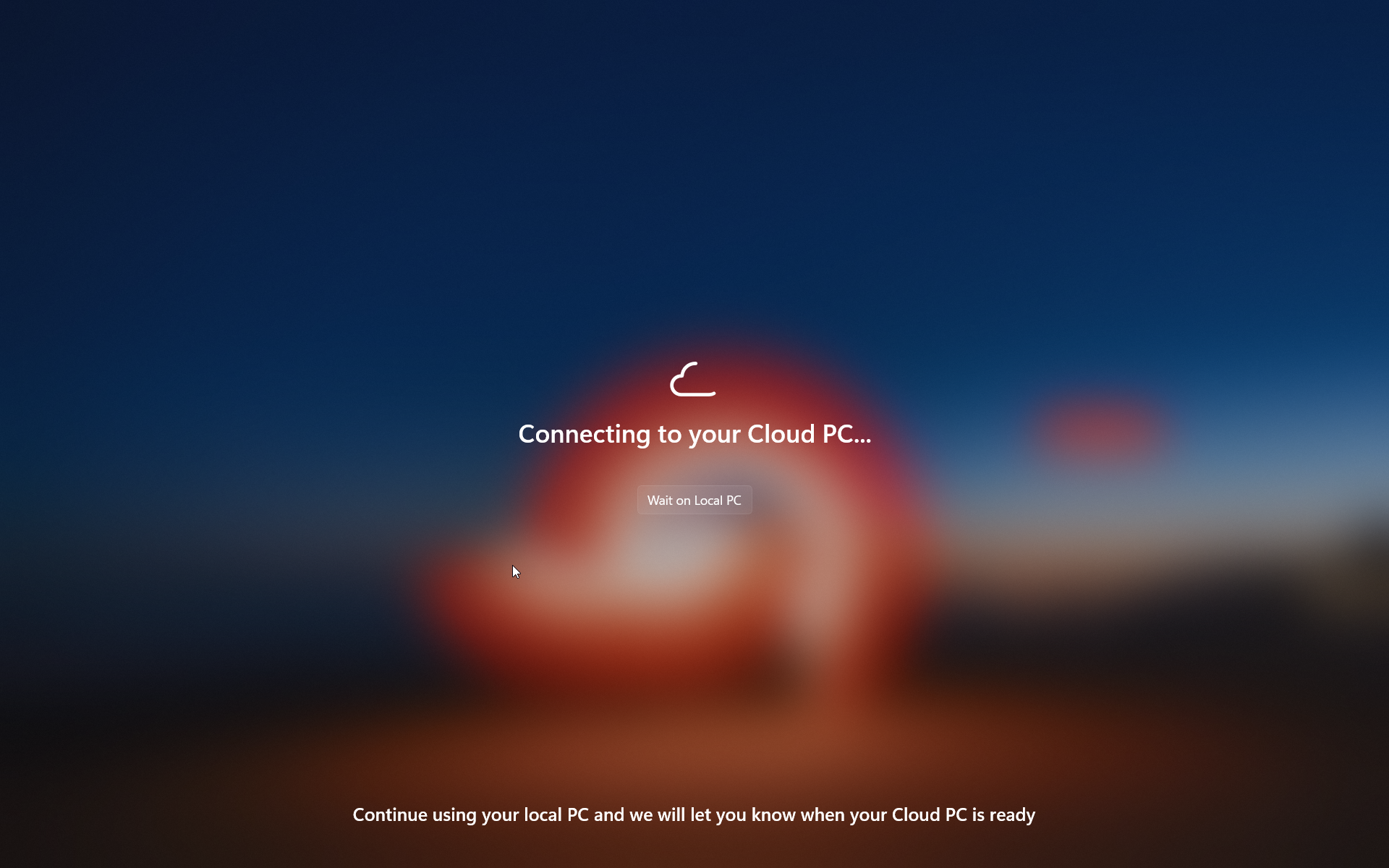
Click on your Cloud PC and you will see a notice that the connection to your cloud PC is being established. Seconds later you will be switched to your Cloud PC.
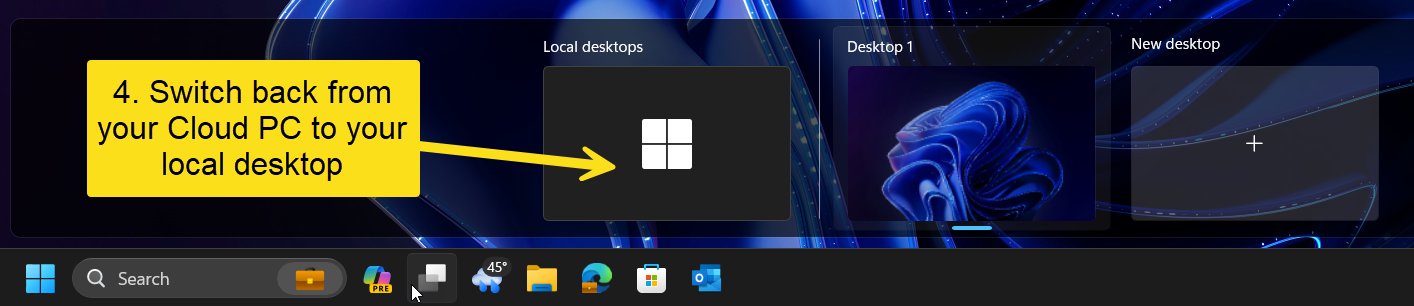
Switching back to your local desktop from your Cloud PC is equally simple. In your cloud PC just hover over the Task View icon and select “Local desktops”. Seconds later you will be back on your local desktop.
It’s so simple I was tempted not to even post about the feature, but if you have a Windows 365 PC that you use this feature so easy to use I really wanted to share it.

One last word. Windows 365 Boot is another recent addition to the Windows 365 offering. This feature allows you to set up a Windows 11 computer to boot directly into the Cloud PC rather than into the local desktop. I am using Windows 365 Boot on an older Microsoft Surface laptop whose age was beginning to show. The CPU, memory and storage were no longer enough for my needs, but it still worked great. I repurposed the device to run Windows 365 Boot. Now when I turn on the device, I enter my Windows 365 Cloud PC credentials at the login screen and am immediately working in my cloud PC with no local desktop to switch from. Simple to set up, and a great user experience as well.
Task Sequence OS Upgrade deployments not appearing in Software Center

Here’s a strange one. I was testing a Task Sequence to upgrade Windows 10 ConfigMgr clients to Windows 10 v. 1803. On one of  the test systems the Task Sequence deployment failed to appear in the Software Center. It was displayed in Software Center on all of the other test systems.  After digging through all of the usual logs and performing all of the tests to attempt to identify the issue, I came across an old blog post about applications, but not packages appearing in the Software Center in Configuration Manager 2012. The post suggested that if two or more users were logged into the system at the same time, only the user with the highest Session ID would see the deployment.

Sure enough, I checked Task Manager to see if anyone else was logged into the system, and another administrator had a disconnected session with a higher Session ID. I killed his session and immediately received notification that there was a new Operating System deployment available. An easy fix for a frustrating few hours of troubleshooting.

Quick WSUS Note

Just a quick note. Have you noticed that your WSUS server is showing a significant spike in CPU usage? Is the w3wp.exe process hosting the WsusPool gobbling up all your server’s memory? Are you seeing client scan failures with 8024401c (timeout) errors in the WindowsUpdate.log? You’re not alone. Apparently Windows 10 1607 updates are the culprit. Hotfixes have been released – check out https://blogs.technet.microsoft.com/askcore/2017/08/18/high-cpuhigh-memory-in-wsus-following-update-tuesdays/.

WSUS Sync Errors after ConfigMgr Migration

With a lot of clients migrating from Configuration Manager 2012 R2 to Current Branch lately, I frequently see issues with WSUS and the Software Update Point after the migration. What seems to happen is that following migration, clients begin to hammer the new Software Update Point with requests, causing the Software Update Point to crash. You’ll see evidence of this in the component status for the Software Update Point, as well as WSUS Synchronization errors as well as other Software Update Point status logs and alerts.

Read more of this post

Windows 10 Servicing – A New Way of Updating

Microsoft’s Configuration Manager product is used extensively to deploy and manage computer life cycle for Windows computers. With Windows 10 there are some significant considerations for existing ConfigMgr administrators. With or without Configuration Manager in your organization, you still need to plan for servicing so if you are not aware of these changes, please read on. This is just an overview, there’s a lot of detail I’ve left out in order to try to make this post simple and easy to follow. I’ve included some links at the end of the post to help you out if you need more detail.

Windows 10 Updating Changes

In Windows 10 Microsoft has introduced a new method for updating, upgrading and maintaining the operating system. This new process will be very new and possibly challenging for organizations currently running Windows 7.

Until recently, major feature enhancements to the Windows OS would be released with every new version of Windows, so from Windows 7 to Windows 8 we saw some significant change to the feature set of the operating system. Of course new Windows versions were released about every 3 to 5 years. With Windows 10 release, and moving forward, Microsoft has committed to an entirely different release cycle. Read more of this post

20 Years of SMS / Configuration Manager.

This takes me back – courtesy ConfigMgr Dogs.

20 Years Of SMS/Configuration Manager

I started working with SMS 2.0 back in 2000. How about you?

Deploying Office 365 Click-to-Run as a Configuration Manager 2012 Application

If you haven’t already, you will likely soon face the task of rolling out Office 365 Click-to-Run. Microsoft’s subscription based Office suite is gaining traction. As with all your other applications, you will probably want to use Configuration Manager to do so. Office 365 changes the way we deploy applications, and it may take a bit of digging to figure out how we manage the Office 365 product using Configuration Manager.

Essentially there are two methods of deploying Office 365 ProPlus:

  1. Install Office 365 ProPlus directly from the Office 365 portal. Installing on demand from the portal may work for only a few users, but does not scale well.
  2. Download Office 365 ProPlus, create a local deployment source, and then deploy it to your users.

This second option is the one we will review in this post.

Read more of this post

SC 2012 Configuration Manager Servicing Extension beta available for download

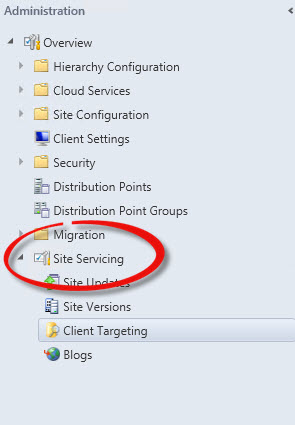
This is a nifty new tool. Today on Microsoft Connect Configuration Manager Servicing Extension was released. It’s a useful extension for CM12 which adds a new node to the Administration workspace.

serviceingManager Node

Once you have installed the extension, the new Site Servicing node provides several useful features.

Read more of this post

Configuration Manager Compliance Settings – Turning Off Auto-Remediation

I’m often asked by both students and consulting clients about Configuration Baselines and Items in Configuration Manager 2012. These existed in Configuration Manager 2007 under the name Desired Configuration Management. Compliance Settings in 2012, which include Configuration Items and Baselines, is great feature and I find often under-appreciated.

The Client Agent in Configuration Manager 2012 includes a great new feature that performs a check to ensure that critical client components and prerequisites are installed and functioning. The reason this is nice should be obvious to any ConfigMgr administrators who have ever had to deal with a client computer with a corrupted WMI database. The client health task, which you will actually find as a scheduled task on Configuration Manager 2012 client computers, runs regularly, will identify and in many cases automatically repair a failed client, Prior to this feature, ConfigMgr administrators spent a lot of time searching for and manually repairing these failed clients.

There are times however when auto-remediation of the Configuration Manager client is not desirable. For instance on a Server. You may not want the CCMEval task to automatically make changes to Windows Management Instrumentation on a server as it might affect other services being hosted on that server. Fortunately it’s a relatively simple fix if you want to disable this auto-remediation. It’s also a great example of Compliance Settings in action.

Read more of this post

Configuration Manager 2012 Windows Update Process

I’ve been offline for a while, working with clients on several Configuration Manager 2012 migrations. In the meantime, I came across a great article on the ConfigMgr Dogs blog. They lay out the Configuration Manager 2012 Software Update client-side process pretty much from beginning to end, including log files. Very useful if you are troubleshooting Software Updating.

http://blogs.technet.com/b/configmgrdogs/archive/2014/06/30/configmgr-2012-windows-update-client-process.aspx for the complete article.